How to Share an Excel Sheet in Google Sheets: A Step-by-Step Guide
Converting Excel to Google Sheets
Are you tired of working with Excel sheets and wanting to switch to Google Sheets? Or maybe you need to collaborate with others on a spreadsheet and want to share it easily? Whatever the reason, sharing an Excel sheet in Google Sheets is a straightforward process. First, you'll need to convert your Excel file to a Google Sheet. This can be done by uploading your Excel file to Google Drive and then opening it in Google Sheets.
To convert your Excel file, simply go to Google Drive and click on the 'New' button. Then, select 'File' and 'Upload files' to upload your Excel file. Once uploaded, right-click on the file and select 'Open with' and then 'Google Sheets'. Your Excel file will be converted to a Google Sheet, and you can start editing it right away.
Sharing Your Google Sheet
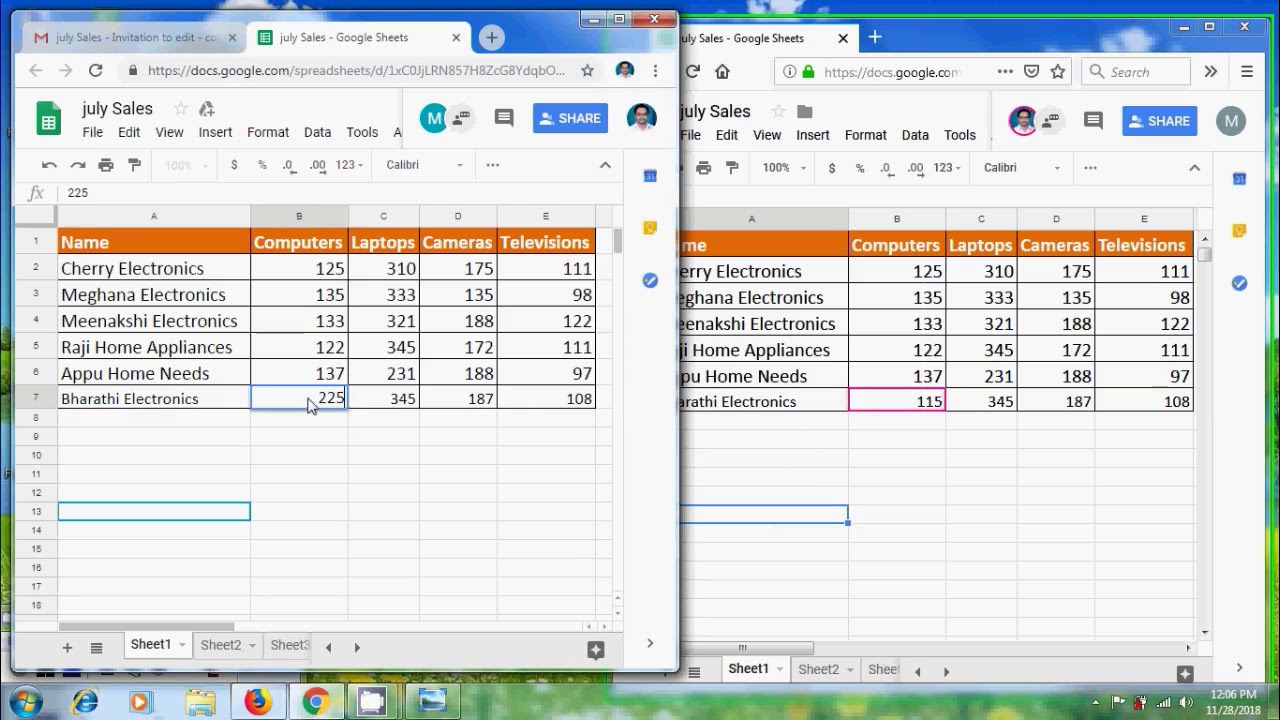
Once your Excel file is converted to a Google Sheet, you can start sharing it with others. To do this, click on the 'Share' button in the top right corner of the screen. Enter the email addresses of the people you want to share the sheet with, and choose their level of permission - either 'Editor', 'Viewer', or 'Commenter'. You can also add a message to the sharing invitation if you want to.
Sharing a Google Sheet is a great way to collaborate with others in real-time. With Google Sheets, you can see changes as they're made, and you can even chat with your collaborators right within the sheet. So why not give it a try? Convert your Excel sheet to a Google Sheet today and start sharing it with others. With its ease of use and powerful collaboration features, Google Sheets is the perfect tool for anyone who needs to work with spreadsheets.