How To Print Multiple Pages On One Page Microsoft Edge
Printing Multiple Pages per Sheet
Printing multiple pages on one page in Microsoft Edge is a convenient way to save paper and ink when you need to print out web pages or documents. This feature is especially useful for printing out long articles, receipts, or other documents where you don't need a full page for each item. To start, open Microsoft Edge and navigate to the web page or document you want to print.
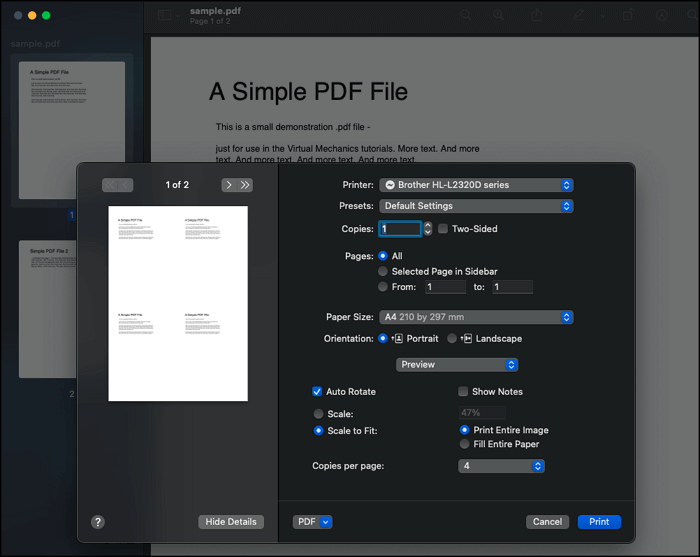
To print multiple pages on one page, click on the three dots in the upper right corner of the browser window and select 'Print' from the dropdown menu. This will open the print dialog box, where you can select your printer and adjust the print settings. In the print dialog box, click on the 'Layout' or 'Preferences' option, depending on your printer model, and look for the 'Pages per sheet' or 'Multiple pages per sheet' option.
Tips and Variations
Select the number of pages you want to print per sheet from the dropdown menu. You can usually choose from 2, 4, 6, 8, or 9 pages per sheet, depending on the size of the pages and your printer's capabilities. Once you've selected the number of pages per sheet, click 'OK' to save your changes and return to the print dialog box. From there, you can click 'Print' to send the job to your printer.
Keep in mind that printing multiple pages on one page can make the text and images smaller, so you may need to adjust the font size or image quality to get the best results. Additionally, some printers may not support printing multiple pages per sheet, so be sure to check your printer's documentation if you're having trouble finding this option. With these simple steps, you can easily print multiple pages on one page in Microsoft Edge and start saving paper and ink today.