How to Create a Presentation Template in PowerPoint

Getting Started with Your Template
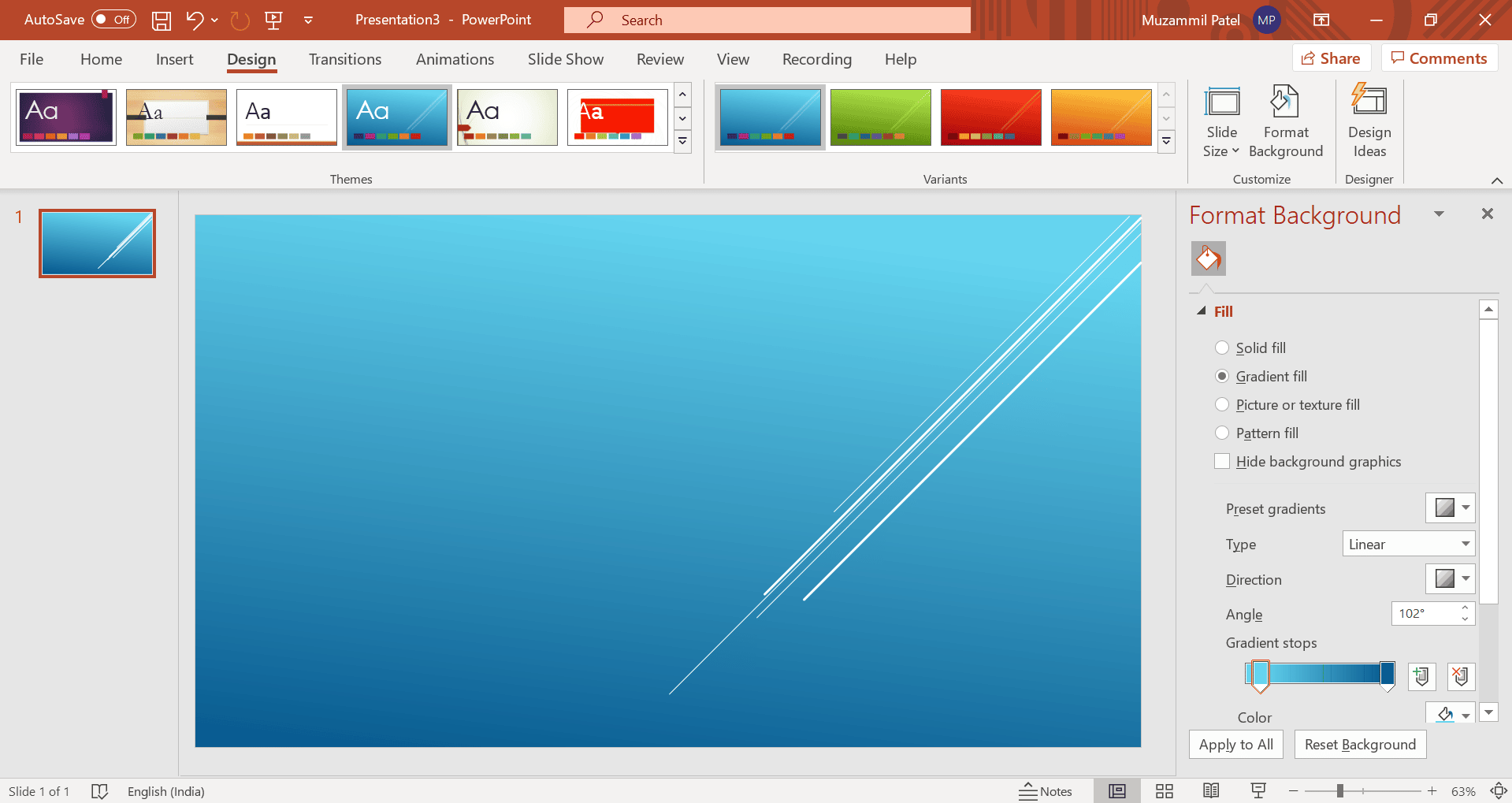
Creating a presentation template in PowerPoint can save you time and effort in the long run. A well-designed template can help you create consistent and professional-looking presentations, making it easier to communicate your message to your audience. To get started, open PowerPoint and click on the 'File' tab, then select 'New' to create a new presentation. You can choose a blank template or select a pre-designed template from the PowerPoint library.
When creating a presentation template, it's essential to consider the purpose and audience of your presentation. Think about the key elements you want to include, such as your company logo, color scheme, and font styles. You can add these elements to your template by using the 'Insert' tab to add images, shapes, and text boxes. You can also use the 'Design' tab to select a theme and customize the layout of your template.
Customizing Your Template
To make your template more effective, you need to consider the layout and design. You can use the 'Slide Master' view to customize the layout and design of your template. This view allows you to edit the master slides, which will be applied to all the slides in your presentation. You can add placeholders for text, images, and other elements, making it easier to add content to your slides later on. Additionally, you can use the 'Themes' gallery to select a pre-designed theme or create your own custom theme.
Once you have set up your template, you can customize it further by adding your own content and design elements. You can use the 'Insert' tab to add tables, charts, and other graphics to your template. You can also use the 'Transitions' tab to add animations and transitions to your slides. To save your template, click on the 'File' tab, then select 'Save As' and choose 'PowerPoint Template' as the file type. This will allow you to use your template as a starting point for future presentations, saving you time and effort in the long run.