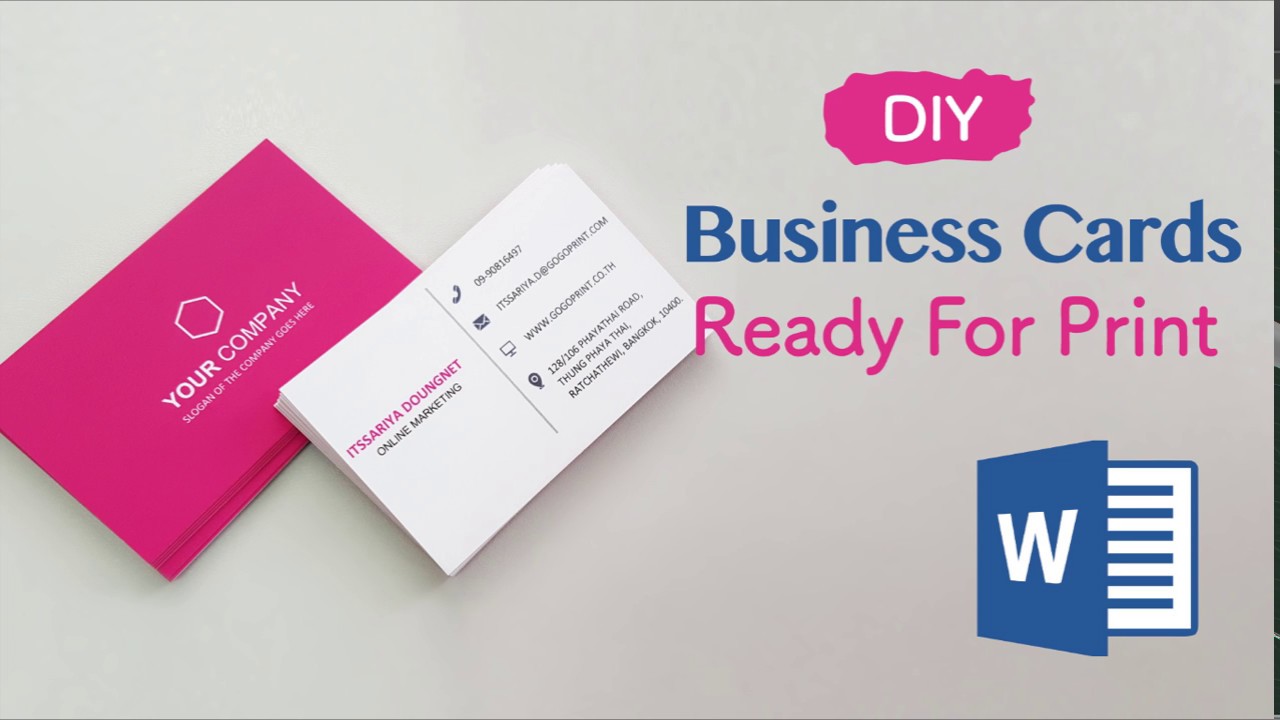
How to Create a Business Card Template in Word
Designing Your Business Card Template
Creating a business card template in Word is a straightforward process that can help you establish a professional identity. With a few simple steps, you can design a template that reflects your brand and helps you stand out from the competition. To get started, open Microsoft Word and select the 'File' menu, then click on 'New' to create a new document. Choose the 'Business Card' template from the available options, or select a blank document and set the page size to 3.5 x 2 inches, which is the standard size for business cards.
When designing your business card template, consider the layout and the information you want to include. Typically, a business card includes your name, title, company name, contact information, and address. You can use the built-in Word tools to add text, images, and shapes to your template. Use a clear and easy-to-read font, and make sure the text is large enough to be visible on a small card.
Customizing Your Business Card Template
To make your business card template more visually appealing, you can add a background image or color, and use different fonts and text sizes to create a hierarchy of information. You can also add a logo or other graphics to represent your brand. Use the Word alignment tools to ensure that the text and images are properly aligned and balanced on the card.
Once you have designed your business card template, you can customize it to fit your specific needs. You can add or remove sections, change the layout, and modify the text and images. You can also use Word's built-in formatting tools to change the color scheme, font styles, and other design elements. With a little creativity and experimentation, you can create a unique and effective business card template that helps you make a great impression.