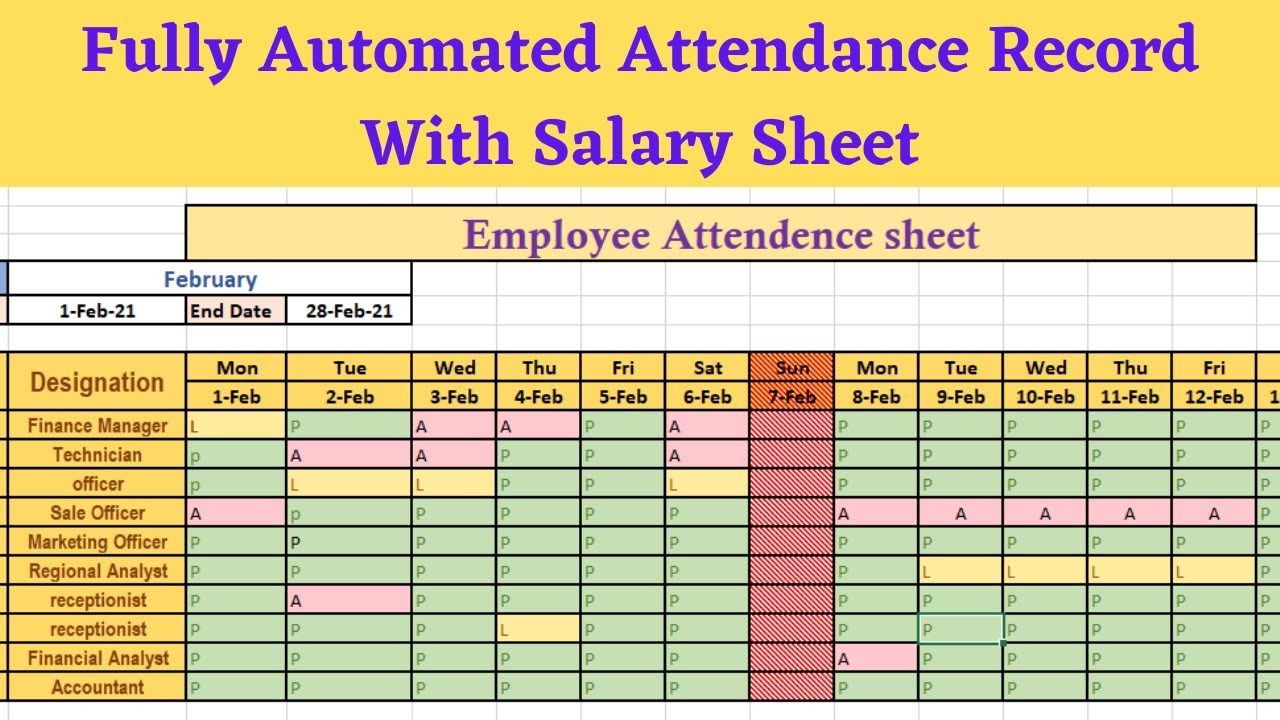
How to Create an Attendance Sheet in Excel


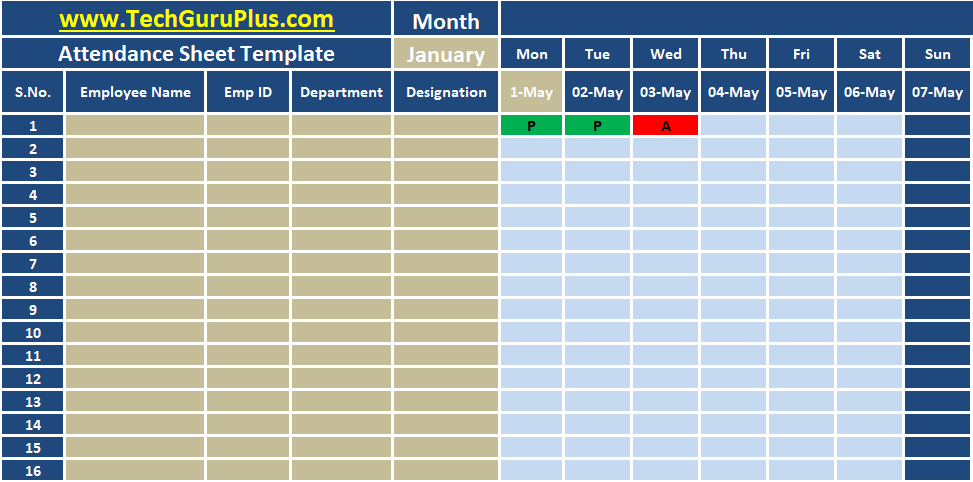
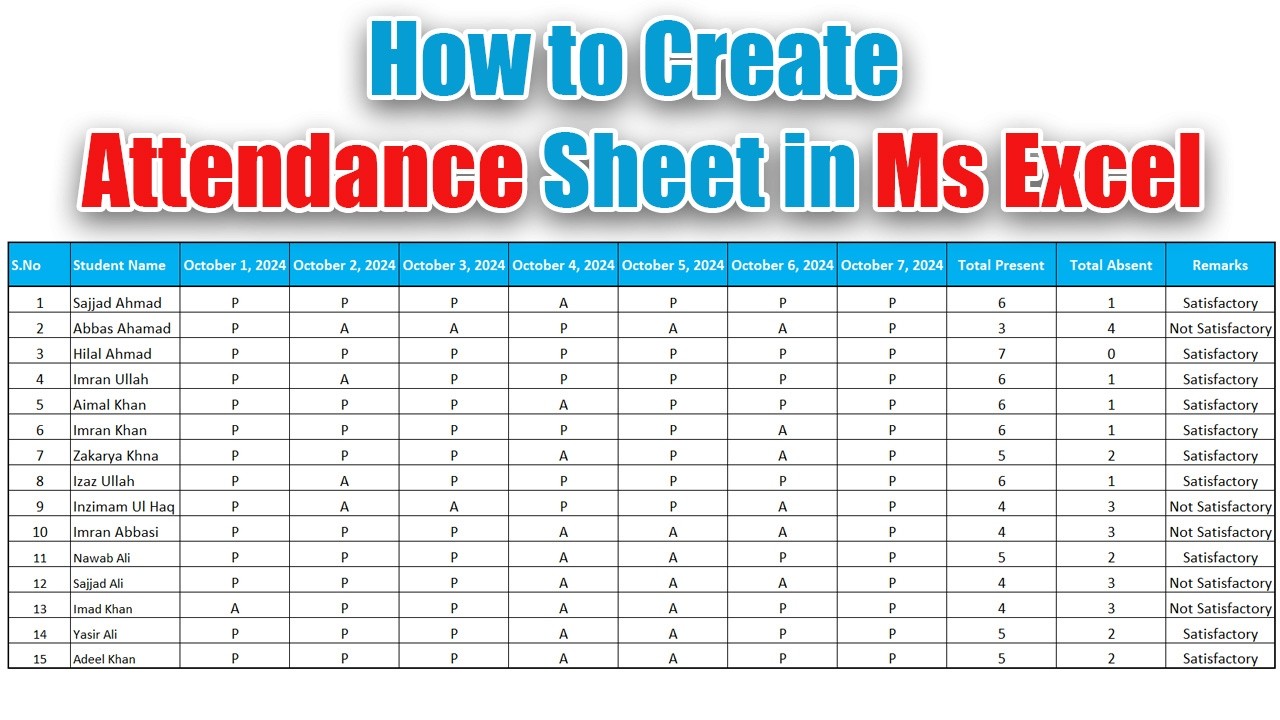
Setting Up Your Attendance Sheet
Creating an attendance sheet in Excel is a straightforward process that can help you track and manage attendance for employees, students, or any other group. To get started, open a new Excel spreadsheet and set up a table with the following columns: date, name, and attendance status. You can also add additional columns to track notes or comments.
The key to creating an effective attendance sheet is to make it easy to use and understand. Use clear and concise headings, and consider using a template to get started. You can find many free attendance sheet templates online that you can customize to fit your needs.
Customizing and Using Your Attendance Sheet
To set up your attendance sheet, start by entering the dates for the month or period you want to track. Then, enter the names of the individuals you want to track attendance for. You can use a formula to automatically fill in the dates and names, or you can enter them manually. Next, create a column for attendance status, where you can enter 'present', 'absent', or 'excused' for each individual.
Once you have set up your attendance sheet, you can customize it to fit your needs. You can add formulas to automatically calculate attendance percentages or totals, or you can use conditional formatting to highlight absences or tardiness. You can also use Excel's built-in tools, such as pivot tables and charts, to analyze and visualize your attendance data.